Imagen de Amazon.com

Portada de Syndetics
Imagen de OpenLibrary
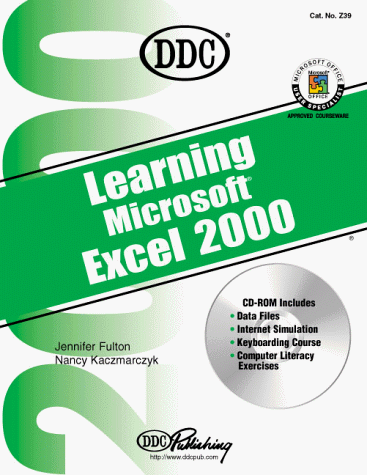
Learning Excel 2000 [Jennifer Fulton].
Detalles de publicación: New York DDC Pub. c2000.Descripción: xii, 382 p. ill. 28 cm. 1 computer optical disc (4 3/4 in.)ISBN:- 1562437054
- Learning Microsoft Excel 2000 [Título de cubierta]
- 005.369 21
- HF5548.4.M523 F848 2000
| Imagen de cubierta | Tipo de ítem | Biblioteca actual | Biblioteca de origen | Colección | Ubicación en estantería | Signatura topográfica | Materiales especificados | Info Vol | URL | Copia número | Estado | Notas | Fecha de vencimiento | Código de barras | Reserva de ítems | Prioridad de la cola de reserva de ejemplar | Reservas para cursos | |
|---|---|---|---|---|---|---|---|---|---|---|---|---|---|---|---|---|---|---|
| Disco | Biblioteca Encarnación Valdés Colección General bev | 005.369 F974L (Navegar estantería(Abre debajo)) | c.2 | Disponible | CD | 80000002390584 | ||||||||||||
| Libro | Biblioteca Encarnación Valdés Colección General bev | 005.369 F974L (Navegar estantería(Abre debajo)) | Disponible | 80000002207457 | ||||||||||||||
| Libro | Biblioteca Encarnación Valdés Colección General bev | 005.369 F974L (Navegar estantería(Abre debajo)) | c.2 | Disponible | 80000002207473 | |||||||||||||
| Disco | Biblioteca Encarnación Valdés Colección General bev | 005.369 F974L (Navegar estantería(Abre debajo)) | Disponible | CD | 80000002390576 |
Total de reservas: 0
Descripciones mejoradas de Syndetics:
Discover Excel's better AutoFormatting capabilities, its improved "Sum" function and new interactive charting on the Web. Now use Excel's "drag and drop data" ability usable with any Internet browser.
ESTE LIBRO INCLUYE UN DISCO
At head of title: DDC.
Includes index.
"Cat. no.: Z39"--T.p. verso.
Tabla de contenidos provista por Syndetics
- Introduction(p. vi)
- Directory of Files(p. ix)
- Lesson 1 Excel 2000 Basics(p. 1)
- Exercise 1 (p. 2)
- About Microsoft Excel 2000
- Start Excel
- The Excel Window
- Exit Excel
- Use the Mouse
- Use the Keyboard
- Mouse and Keystroke Procedures
- Menus and Commands
- Shortcut Menus
- Toolbars
- Dialog Box Options
- Exercise 2 (p. 11)
- Change the Size of a Window
- Set View Preferences
- The View Menu
- The Zoom Option
- Exercise 3 (p. 16)
- The Office Assistant
- Other Help Features
- Help on the Internet
- Exercise 4 (p. 21)
- Change the Active Cell
- Explore the Worksheet with the Mouse or the Keyboard
- Use Go To
- Use the Name Box
- The Excel Keyboard Template
- Exercise 5 (p. 25)
- Manage Multiple Workbooks
- Internet Basics
- Web Features in Excel 2000
- Use Web Toolbars
- Lesson 2 Key Worksheet Procedures(p. 31)
- Exercise 6 (p. 32)
- Start a Blank Workbook
- Enter Labels
- Make Corrections
- Save a Workbook
- Close a Workbook
- Exercise 7 (p. 36)
- Enter Numeric Labels and Values
- Enter Fractions and Mixed Numbers
- Change Data Alignment
- Center a Title (Merge and Center)
- Change Column Width
- Adjust Row Height
- Indent Text in Cells
- Add Comments to Cells
- Exercise 8 (p. 43)
- AutoComplete
- Pick From List
- AutoCorrect
- Undo and Redo
- Clear Cell Contents
- Check Spelling
- Exercise 9 (p. 47)
- Enter Line Breaks in a Cell Entry
- Enter Dates
- Format Dates
- Exercise 10 (p. 50)
- Open a Workbook
- Change Workbook Properties
- Save a Workbook with a Different Name
- Create a New Folder
- Create Backup Files
- Check for Potential Viruses
- Send a File
- Exercise 11 (p. 55)
- Critical Thinking
- Lesson 3 Use Formulas And Formatting(p. 57)
- Exercise 12 (p. 58)
- Use Formulas
- Mathematical Operators
- Natural Language Formulas
- Exercise 13 (p. 62)
- Format Data with Formatting Toolbar
- Fonts and Font Size
- Add Bold, Italic, and Underline
- Currency, Percent, Comma, and Accounting Formats
- Increase or Decrease Decimals
- Format Numbers with the Format Cells Dialog Box
- Create Custom Number Formats
- Exercise 14 (p. 67)
- Use Ranges
- Name Ranges
- Exercise 15 (p. 72)
- Copy Data
- Copy Using AutoFill
- Copy Part of a Cell's Contents
- Copy a Formula (Absolute, Relative, and Mixed Reference)
- Exercise 16 (p. 76)
- Create a Series
- AutoSum
- Exercise 17 (p. 80)
- Use Functions
- Formula Bar and Palette
- Paste Function
- Noncontiguous Ranges in a Function
- AutoCalculate
- Exercise 18 (p. 85)
- Critical Thinking
- Lesson 4 Print A Worksheet(p. 87)
- Exercise 19 (p. 88)
- Preview a Worksheet
- Quickly Print a Worksheet
- Exercise 20 (p. 91)
- Set the Print Area
- Print Options
- Page Setup
- Exercise 21 (p. 95)
- Page Breaks
- Page Break Preview
- Headers and Footers
- Exercise 22 (p. 99)
- Print Titles
- Exercise 23 (p. 102)
- Critical Thinking
- Lesson 5 Edit and Manipulate Worksheets and Workbooks(p. 103)
- Exercise 24 (p. 104)
- Insert and Delete Selected Cells
- Insert and Delete Columns and Rows
- Move Data (Cut/Paste)
- Drag-and-Drop Editing
- Copy or Move Data with the Office Clipboard
- Exercise 25 (p. 110)
- Copy and Paste Special
- Transpose Data
- Exercise 26 (p. 113)
- Move Between Worksheets
- Rearrange Worksheets
- Name a Worksheet
- Add and Delete Worksheets
- Copy a Worksheet
- Group Sheets
- Exercise 27 (p. 118)
- Copy and Paste Special (Combine Data)
- Exercise 28 (p. 121)
- Freeze Titles
- Split Panes
- Scroll Tips
- Move Between Workbooks
- Arrange Workbooks
- Save the Workspace
- New (or Duplicate) Workbook Window
- Exercise 29 (p. 127)
- 3-D Formulas
- Exercise 30 (p. 130)
- Drag-and-Drop Editing Between Workbooks
- Find and Replace
- Exercise 31 (p. 133)
- Use Templates (Spreadsheet Solutions)
- Exercise 32 (p. 139)
- Create Original Templates
- Exercise 33 (p. 142)
- Critical Thinking
- Lesson 6 Modify the Appearance of a Worksheet(p. 143)
- Exercise 34 (p. 144)
- Use the Font Tab
- Rotate Text
- Wrap Text
- Merge Cells
- Exercise 35 (p. 148)
- Change Cell Colors and Patterns
- Change Cell Borders
- Hide Worksheet Gridines
- Format Worksheet Background
- Copy Formats with Format Painter
- Clear Cell Formats
- Create Styles
- Exercise 36 (p. 154)
- The Drawing Toolbar
- Insert AutoShapes
- Draw Objects
- Format Objects
- Exercise 37 (p. 159)
- Insert WordArt
- Exercise 38 (p. 162)
- Insert and Size Clip Art
- Download Clip Art from the Internet
- Exercise 39 (p. 165)
- Use AutoFormat to Format Ranges
- Exercise 40 (p. 168)
- Add and Format a Text Box
- Add Callouts
- Add Shadows
- Exercise 41 (p. 172)
- Critical Thinking
- Lesson 7 Integrate Excel with other Applications and the Internet(p. 173)
- Exercise 42 (p. 174)
- Object Linking and Embedding (OLE)
- Link Workbooks
- Link Files
- Edit a Linked File
- Embed a File
- Integrate Office Documents
- Exercise 43 (p. 178)
- Integrate an Excel Worksheet and a Word Document
- Financial Data on the Internet
- Exercise 44 (p. 184)
- Save a Worksheet as a Web Page
- Web Page Preview
- Create an Interactive Worksheet
- View a Web Page
- Exercise 45 (p. 191)
- Import Text Files
- Import Data from Other Applications
- Import a Table from an HTML File
- Use the Clipboard to Import Data
- Export Data to Other Applications
- Exercise 46 (p. 198)
- Critical Thinking
- Lesson 8 Use Advanced Functions(p. 199)
- Exercise 47 (p. 200)
- Understand IF Functions
- Enter an IF Function
- Nested IF Functions
- =SUMIF()
- =COUNTIF()
- Conditional Formatting
- Exercise 48 (p. 207)
- PMT Function
- What-If Data Tables
- Exercise 49 (p. 213)
- Solve a Problem with Goal Seek
- Use Solver to Resolve Problems
- Exercise 50 (p. 217)
- Conditional Sum Wizard
- Exercise 51 (p. 220)
- Audit Formulas
- Error Messages
- Exercise 52 (p. 224)
- Hide Data
- Save Different Views of the Workbook (Custom Views)
- Exercise 53 (p. 228)
- Scenarios
- Report Manager
- Exercise 54 (p. 233)
- VLOOKUP Function
- HLOOKUP Function
- Exercise 55 (p. 237)
- Lock/Unlock Cells in a Worksheet
- Protect a Worksheet
- Protect a Workbook
- Exercise 56 (p. 241)
- Share Workbooks
- Track Changes
- Merge Changes
- Exercise 57 (p. 245)
- Critical Thinking
- Lesson 9 Create and Modify Charts(p. 247)
- Exercise 58 (p. 248)
- Chart Basics
- Select Chart Data
- Chart Elements
- Create a Chart
- Select a Chart
- Change the Chart Type
- Resize, Copy, Move, or Delete a Chart
- Exercise 59 (p. 254)
- Use the Chart Toolbar
- Select a Chart Object
- Resize, Move, or Delete a Chart Object
- Add a Chart Object
- Change Chart Text
- Change the Orientation of Chart Text
- Exercise 60 (p. 259)
- Enhance the Chart Background
- Format Category and Value Axes
- Change Color and Patterns of Data Series
- Add or Remove Data in a Chart
- Exercise 61 (p. 266)
- Preview a Chart
- Print a Chart Sheet
- Print an Embedded Chart
- Publish a Chart to the Internet/intranet
- Exercise 62 (p. 271)
- Change the Location of a Chart
- Change the Orientation of a Data Series
- Exercise 63 (p. 274)
- Create a Stock Chart
- Add a Secondary Value Axis to a Chart
- Change Data Marker Format
- Exercise 64 (p. 279)
- Create an Exploded Pie Chart
- Size the Plot Area or Legend in a Chart
- Create a Stacked Area Chart
- Exercise 65 (p. 283)
- Create a 3-D Chart
- Change the View of a 3-D Chart
- Display or Hide Gridlines or Data Labels
- Exercise 66 (p. 288)
- Map Excel Data with Microsoft Map
- Edit and Format a Map
- Exercise 67 (p. 292)
- Link a Chart and a Word Document
- Embed a Chart into a Word Document
- Edit a Linked or Embedded Chart
- Exercise 68 (p. 296)
- Critical Thinking
- Lesson 10 Analyze Data(p. 299)
- Exercise 69 (p. 300)
- Create a List/Database
- Name a List/Database
- Use a Data Form to Add Records
- Adding Fields to a List
- Exercise 70 (p. 304)
- Modify a Record
- Find a Record
- Delete a Record
- Exercise 71 (p. 308)
- Control Data Entry
- Copy and Paste Validation Rules
- Circle Invalid Data
- Exercise 72 (p. 314)
- Sort Records in a List
- Rules for Sorting
- Undo a Sort
- Restore the Record Order
- Exercise 73 (p. 319)
- AutoFilter a Database
- Exercise 74 (p. 323)
- Advanced Filters
- Guidelines for Entering Criteria
- Examples of Advanced Criteria
- Remove an In-place Advanced Filter
- Edit Extracted Records
- Exercise 75 (p. 330)
- Use Database (List) Functions
- Excel's Database Functions
- Exercise 76 (p. 334)
- Subtotal a List
- Create Nested Subtotals
- Remove a Subtotal
- Copy a Subtotal
- Outline a Worksheet
- Exercise 77 (p. 340)
- Create PivotTables and PivotCharts
- Publish a PivotTable or PivotChart
- Use PivotTable Toolbar
- Exercise 78 (p. 347)
- Data Consolidation
- Create Consolidation Tables
- Exercise 79 (p. 351)
- Critical Thinking
- Lesson 11 Create Macros and Hyperlinks(p. 353)
- Exercise 80 (p. 354)
- Record a Macro
- Stop Recording
- Run a Macro
- Exercise 81 (p. 359)
- Open a Workbook Containing Macros
- Edit a Macro
- Delete a Macro
- Assign a Macro to a Toolbar Button
- Assign a Macro to a Control
- Exercise 82 (p. 365)
- Link Documents with Hyperlinks
- Add a Hyperlink to a Worksheet
- Exercise 83 (p. 370)
- Critical Thinking