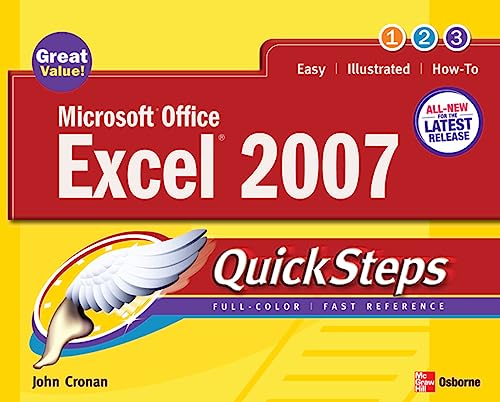

Microsoft Office Excel 2007 John Cronan.
Series QuickStepsDetalles de publicación: New York London McGraw-Hill c2007.Descripción: xii, 276 p. col. ill. 21 x 26 cmISBN:- 9780072263725 (pbk.)
- 0072263725 (pbk.)
- 005.54 C9471m 22
- HF5548.4.M523 C766 2007
| Imagen de cubierta | Tipo de ítem | Biblioteca actual | Biblioteca de origen | Colección | Ubicación en estantería | Signatura topográfica | Materiales especificados | Info Vol | URL | Copia número | Estado | Notas | Fecha de vencimiento | Código de barras | Reserva de ítems | Prioridad de la cola de reserva de ejemplar | Reservas para cursos | |
|---|---|---|---|---|---|---|---|---|---|---|---|---|---|---|---|---|---|---|
| Libro | Biblioteca Encarnación Valdés Colección General bev | 005.54 C9471m (Navegar estantería(Abre debajo)) | Disponible | 80000002346891 |
Descripciones mejoradas de Syndetics:
Publisher's Note: Products purchased from Third Party sellers are not guaranteed by the publisher for quality, authenticity, or access to any online entitlements included with the product.
Step-by-Step, Full-Color Graphics!
Get started using Microsoft Office Excel 2007 right away--the QuickSteps way. Color screenshots and clear instructions show you how to use all the new and improved features available in this premier spreadsheet program. Follow along and learn to work with the new Office interface and ribbon, create workbooks, use Excel's XML file formats, enter and edit data, use formulas and functions, create charts and tables, analyze data, and more. Plus, it's easy to flip straight to the information you need using the color-coded tabs. Get the book that gets you started using Excel 2007 in no time.
In each chapter:
Shortcuts for accomplishing common tasks Need-to-know facts in concise narrative Helpful reminders or alternate ways of doing things Bonus information related to the topic being covered Errors and pitfalls to avoidIncludes index.
Tabla de contenidos provista por Syndetics
- Acknowledgments(p. iv)
- Introduction(p. xii)
- Chapter 1 Stepping into Excel(p. 1)
- Opening Excel(p. 3)
- Get Started with Excel(p. 3)
- Explore the Excel Window(p. 3)
- Create a Workbook(p. 3)
- Understanding the Ribbon(p. 7)
- Open an Existing Workbook(p. 7)
- Change the Appearance of New Workbooks(p. 8)
- Customize the Quick Access Toolbar(p. 10)
- Get Help(p. 14)
- Open Help(p. 15)
- Use the Excel Help Window(p. 16)
- Understanding Excel's XML File Formats(p. 18)
- Close Your Excel Workbook(p. 18)
- Save a Workbook Automatically(p. 18)
- Save a Workbook Manually(p. 21)
- Save a Copy of Your Workbook(p. 22)
- Add Identifying Information(p. 22)
- Understanding Excel File Compatibility(p. 24)
- Exit an Excel Session(p. 24)
- Chapter 2 Entering and Editing Data(p. 25)
- Understanding Data Types(p. 26)
- Enter Data(p. 26)
- Enter Text(p. 26)
- Enter Numeric Data(p. 29)
- Completing an Entry(p. 30)
- Enter Dates(p. 30)
- Use Times(p. 31)
- Formatting Numbers(p. 32)
- Understanding Excel Dates and Times(p. 34)
- Edit Data(p. 35)
- Edit Cell Data(p. 35)
- Adding Data Quickly(p. 36)
- Remove Cell Contents(p. 36)
- Copy and Paste Data(p. 38)
- Selecting Cells and Ranges(p. 39)
- Use Paste Special(p. 39)
- Find and Replace Data(p. 39)
- Verify Spelling(p. 42)
- Modify Automatic Corrections(p. 44)
- Chapter 3 Formatting a Worksheet(p. 45)
- Adding and Removing Rows, Colunms, and Cells(p. 46)
- Work with Cells, Rows, and Columns(p. 46)
- Adjust Row Height(p. 46)
- Adjust Column Width(p. 47)
- Hide and Unhide Rows and Columns(p. 48)
- Change Cell Borders(p. 49)
- Add a Comment(p. 51)
- Formatting Comments(p. 53)
- Apply Formatting(p. 53)
- Understanding Excel Formatting(p. 54)
- Apply Themes(p. 54)
- Create Custom Themes(p. 59)
- Searching for Themes(p. 60)
- Use Cell Styles(p. 60)
- Change Fonts(p. 64)
- Change Alignment and Orientation(p. 65)
- Add a Background(p. 66)
- Transfer Formatting(p. 68)
- Arrange and Organize Worksheets(p. 69)
- Lock Rows and Columns(p. 69)
- Split a Worksheet(p. 71)
- Working with Worksheets(p. 72)
- View Worksheets from Multiple Workbooks(p. 72)
- Compare Workbooks(p. 72)
- Chapter 4 Using Formulas and Functions(p. 75)
- Understanding Cell Referencing Types(p. 76)
- Reference Cells(p. 76)
- Change Cell References(p. 76)
- Change to R1C1 References(p. 76)
- Name Cells(p. 77)
- Using Cell Reference Operators(p. 79)
- Go to a Named Cell(p. 79)
- Build Formulas(p. 79)
- Create a Formula(p. 79)
- Working with Cell Names(p. 80)
- Edit a Formula(p. 82)
- Move Formulas(p. 83)
- Using Formulas(p. 84)
- Copy Formulas(p. 84)
- Recalculate Formulas(p. 85)
- Use External References in Formulas(p. 85)
- Understanding the Trust Center(p. 87)
- Format Conditionally(p. 91)
- Using Functions Quickly(p. 95)
- Use Functions(p. 95)
- Enter a Function(p. 95)
- Enter a Sum in Columns or Rows Quickly(p. 98)
- Find and Correct Errors(p. 98)
- Check for Errors(p. 98)
- Trace Precedent and Dependent Cells(p. 100)
- Watch a Cell(p. 100)
- Evaluate a Formula in Pieces(p. 101)
- Chapter 5 Viewing and Printing Data(p. 103)
- Understanding Excel Views(p. 104)
- Lay Out a Worksheet(p. 104)
- Add Headers and Footers(p. 104)
- Adding Content to Headers and Footers(p. 109)
- Add Pictures to Headers and Footers(p. 109)
- Change Margins(p. 110)
- Select Page Orientation(p. 112)
- Use Headers as Page Titles(p. 112)
- Working with Zoom(p. 114)
- Print the Data(p. 115)
- Change the Order in Which Pages Print(p. 115)
- Choosing Worksheet Print Options(p. 116)
- Print Comments(p. 116)
- Use Print Areas(p. 116)
- Choosing What to Print(p. 118)
- Preview the Print Job(p. 119)
- Scale Your Data Before Printing(p. 125)
- Output the Print Job(p. 125)
- Chapter 6 Charting Data(p. 129)
- Building a Chart(p. 131)
- Create and Design a Chart(p. 131)
- Choose a Chart Type(p. 131)
- Selecting Data for Charting(p. 134)
- Choose a Chart Location(p. 134)
- Modify How the Data Is Plotted(p. 137)
- Apply a Chart Layout(p. 139)
- Change a Chart's Style(p. 140)
- Selecting Chart Elements(p. 141)
- Modify Chart Elements(p. 141)
- Add Titles(p. 141)
- Show or Hide Axes(p. 142)
- Add or Remove Gridlines(p. 142)
- Identifying Chart Elements(p. 143)
- Show or Hide a Legend(p. 143)
- Add Data Labels(p. 143)
- Display the Data Table(p. 145)
- Create Your Own Chart Type(p. 145)
- Add a Second Value Axis(p. 146)
- Format Chart Elements(p. 147)
- Working with Charts(p. 148)
- Use Charts(p. 149)
- Add Charts Elsewhere(p. 149)
- Analyze Charts(p. 150)
- Print a Chart(p. 153)
- Chapter 7 Working with Shapes and Pictures(p. 155)
- Understanding Shapes(p. 156)
- Add Shapes, Pictures, and Text(p. 156)
- Add Shapes(p. 156)
- Working with Curves(p. 157)
- Insert Pictures(p. 158)
- Using Pictures(p. 163)
- Organize Pictures(p. 163)
- Add Text(p. 167)
- Use SmartArt(p. 169)
- Changing SmartArt(p. 171)
- Working with Shapes(p. 171)
- Select, View, and Delete Shapes(p. 171)
- Using Handles and Borders to Change Shapes(p. 173)
- Crop Pictures(p. 174)
- Position Shapes(p. 175)
- Combining Shapes by Grouping(p. 177)
- Formatting Shapes and Text(p. 177)
- Use Styles(p. 177)
- Apply Styling Elements to Pictures(p. 178)
- Changing a Picture's Attributes(p. 180)
- Change a Shape's Fill(p. 180)
- Add WordArt Styling to Text(p. 181)
- Make Detailed Formatting Changes(p. 184)
- Chapter 8 Managing Data(p. 185)
- Understanding Excel Tables(p. 186)
- Build Tables(p. 186)
- Create a Table(p. 186)
- Adding Rows and Columns to a Table(p. 189)
- Delete Rows and Columns Within a Table(p. 189)
- Add a Total Row(p. 189)
- Apply Styles to a Table(p. 190)
- Working with Tables(p. 192)
- Validate Data(p. 195)
- Locating Validation Data(p. 197)
- Organize Data(p. 198)
- Sort Data by Columns(p. 199)
- Sort Data by Rows(p. 202)
- Removing Filters(p. 203)
- Create an AutoFilter(p. 203)
- Setting Up Criteria and Extract Ranges(p. 206)
- Use Advanced Filtering(p. 206)
- Outline Data Automatically(p. 207)
- Using Outlines(p. 208)
- Outline Data by Manually Grouping(p. 210)
- Add Subtotals(p. 210)
- Add Styles to an Outline(p. 211)
- Chapter 9 Analyzing and Sharing Data(p. 213)
- Get the Results You Want(p. 213)
- Use Goal Seek(p. 214)
- Compare Alternatives Using Scenarios(p. 216)
- Use Multiple Variables to Provide a Result(p. 219)
- Save Solver Results and Settings(p. 222)
- Changing Solver Settings(p. 224)
- Work with PivotTables(p. 224)
- Create a PivotTable(p. 224)
- Understanding PivotTable Terms(p. 225)
- Create the PivotTable Layout(p. 225)
- Style a PivotTable(p. 229)
- Using PivotTables(p. 231)
- Create a PivotTable Chart(p. 231)
- Work with Other Users(p. 234)
- Protect Workbooks with Passwords(p. 234)
- Share a Workbook(p. 235)
- Working with Changes in a Shared Workbook(p. 237)
- Protect a Shared Workbook(p. 237)
- Discontinue Sharing a Workbook(p. 238)
- Work with Views(p. 240)
- Protect Worksheet and Workbook Elements(p. 241)
- Chapter 10 Extending Excel(p. 243)
- Acquire Data(p. 244)
- Convert Text to Data(p. 244)
- Add a Table from an Access Database(p. 246)
- Get Data from the Web(p. 247)
- Add External Data from Existing Connections(p. 248)
- Setting External Data Range Properties(p. 249)
- Manage Connections(p. 249)
- Use Excel with Web Technology(p. 252)
- Understanding the Difference Between Save and Publish(p. 253)
- Save a Workbook as a Web Page(p. 253)
- Publish Workbook Items as a Web Page(p. 255)
- Understanding Excel Services(p. 256)
- Use Hyperlinks(p. 256)
- Automate Excel(p. 260)
- Use Recorded Macros(p. 260)
- Edit a Macro(p. 262)
- Index(p. 265)
Notas de autor provistas por Syndetics
John Cronan has been working with computers for more than 25 years. His books include eBay QuickSteps, Microsoft Office Excel 2003 QuickSteps, Microsoft Office Access 2007 QuickSteps, and others.