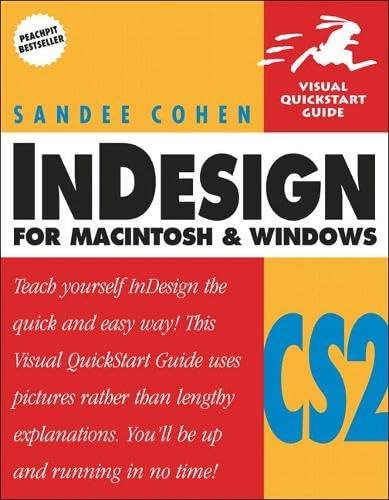

InDesign CS2 for Macintosh and Windows Sandee Cohen.
Series Visual quickstart guideDetalles de publicación: Berkeley, CA Peachpit Press c2006.Descripción: xv, 582 p. ill. 23 cmISBN:- 0321322010 (pbk.)
- InDesign CS2 for Macintosh & Windows [Título de cubierta]
- InDesign for Macintosh & Windows
- 005.52 C6781i 22
- Z253.532.A34 C6382 2006
| Imagen de cubierta | Tipo de ítem | Biblioteca actual | Biblioteca de origen | Colección | Ubicación en estantería | Signatura topográfica | Materiales especificados | Info Vol | URL | Copia número | Estado | Notas | Fecha de vencimiento | Código de barras | Reserva de ítems | Prioridad de la cola de reserva de ejemplar | Reservas para cursos | |
|---|---|---|---|---|---|---|---|---|---|---|---|---|---|---|---|---|---|---|
| Libro | Biblioteca Encarnación Valdés Colección General bev | 005.52 C6781i (Navegar estantería(Abre debajo)) | Disponible | 80000002321449 |
Descripciones mejoradas de Syndetics:
Trusted format and a master teacher make this guide the choice for becoming a page layout pro using InDesign CS2 - quickly and easily ; Best-selling author Sandee Cohen's lively and engaging teaching style has made her a favorite at conferences and seminars.; Completely revised volume gets readers up to speed fast on most of InDesign CS2's features.; Step-by-step instructions, loads of tips and visual aids make learning more like playing as readers make their way through this friendly, information-packed volume. In a perfect world, InDesign-produced print documents would be effortlessly convertible to Web pages, files could be imported from Photoshop with text and layers editable and intact, and all of Adobe's design, graphics, and publishing programs would play well together. Well, the world may not be perfect, but the above-described scenario is precisely what users will find in Adobe's brand-new InDesign CS2 (USD699; upgrade, USD169), the page design anchor of that company's rightly integrated Creative Suite 2 due to ship in the later part of April 2005. Here to get readers up to speed on it is Adobe InDesign CS2 for Macintosh and Windows: Visual QuickStart Guide. Peachpit's popular Visual QuickStart Guides, this volume introduces readers to all aspects of InDesign CS2. Users will learn how to create and automate documents, import and style text and objects, manage long documents, and work with color. They'll also find complete coverage of all of InDesign CS2's new features: Object Styles, Snippets, working with layered Photoshop files, browsing with Adobe's new Bridge, and more.
"For computers using: Mac OS X 10.2.8 or higher [or] Microsoft Windows 2000 (SP4) or Windows XP (SP1 or SP2)"--P. [4] of cover.
Book level: Beginning-Intermediate.
Includes index.
Tabla de contenidos provista por Syndetics
- Introduction(p. xiii)
- Chapter 1 Getting Started(p. 1)
- Choosing Palettes(p. 2)
- Working with Palettes(p. 10)
- Using Workspaces(p. 14)
- Using the Toolbox(p. 15)
- Using Contextual Menus(p. 16)
- Chapter 2 Document Setup(p. 17)
- Starting Documents(p. 18)
- Choosing Layout Options(p. 20)
- Changing Layout Options(p. 23)
- Using the Document Presets(p. 24)
- Using Document Rulers(p. 26)
- Working with Guides(p. 28)
- Working with Document Grids(p. 32)
- Changing the Magnification(p. 33)
- View and Pasteboard Controls(p. 35)
- Using the Zoom and Hand Tools(p. 37)
- Using the Navigator Palette(p. 39)
- Controlling Windows(p. 41)
- File Maintenance(p. 42)
- Working with Bridge(p. 45)
- Chapter 3 Basic Text(p. 49)
- Creating Text Frames(p. 50)
- Typing Text(p. 53)
- Selecting Text(p. 54)
- Moving and Deleting Text(p. 56)
- Using the Character Palette(p. 58)
- Setting the Typeface and Point Size(p. 59)
- Styling Text(p. 60)
- Setting Line and Character Spacing(p. 62)
- Applying Text Distortions(p. 64)
- Setting the Language(p. 65)
- Applying Paragraph Formatting(p. 66)
- Setting Alignment and Indents(p. 67)
- Inserting a Manual Indent(p. 69)
- Setting Paragraph Effects(p. 70)
- Working with Hidden Characters(p. 71)
- Using the Glyphs palette(p. 72)
- Working with Text Flow(p. 75)
- Setting Text Frame General Controls(p. 76)
- Using the Control Palette for Text(p. 79)
- Using Special Text Characters(p. 80)
- Chapter 4 Working with Objects(p. 81)
- Types of Frames(p. 82)
- Creating Basic Shapes(p. 83)
- Selecting Objects(p. 85)
- Moving Objects(p. 86)
- Replicating Objects(p. 88)
- Resizing Objects(p. 90)
- Using the Transform Tools(p. 91)
- Using the Transform Palette(p. 96)
- Using the Transform Commands(p. 100)
- Using the Arrange Commands(p. 102)
- Aligning Objects(p. 103)
- Grouping and Pasting Into Objects(p. 106)
- Using the Control Palette for Objects(p. 110)
- Using the Measure Tool(p. 111)
- Using the Info Palette with Objects(p. 113)
- Locking Objects(p. 114)
- Selecting Frames(p. 115)
- Chapter 5 Working in Color(p. 117)
- The Basics of Color(p. 118)
- Using the Color Palette(p. 120)
- Defining and Storing Swatches(p. 124)
- Using Swatch Libraries(p. 132)
- Creating Mixed Inks(p. 134)
- Creating Tints(p. 138)
- Using the Color Picker(p. 140)
- Creating Gradient Swatches(p. 141)
- Using the Eyedropper(p. 144)
- Overprinting Colors(p. 145)
- Chapter 6 Styling Objects(p. 147)
- Applying Fills(p. 148)
- Applying Stroke Effects(p. 152)
- Creating Custom Stroke Styles(p. 159)
- Adding Arrows and Corner Effects(p. 166)
- Applying Transparency(p. 167)
- Adding Drop Shadows and Feathers(p. 171)
- Using the Pathfinder Commands(p. 173)
- Using the Eyedropper(p. 176)
- Setting Object Defaults(p. 178)
- Chapter 7 Pen and Beziers(p. 179)
- Pen Points(p. 180)
- Drawing Lines(p. 181)
- Drawing Curves(p. 182)
- Changing Curves and Corner Points(p. 183)
- Modifying Paths(p. 184)
- Modifying Points(p. 186)
- Using the Pencil Tool(p. 188)
- Using the Smooth Tool(p. 190)
- Using the Erase Tool(p. 191)
- Adding or Deleting Points on Paths(p. 192)
- Chapter 8 Imported Graphics(p. 193)
- Placing Artwork(p. 194)
- Using Bridge to Place Artwork(p. 196)
- Specialty Frames(p. 197)
- Setting the Image Import Options(p. 200)
- Working with Images Inside Frames(p. 204)
- Using the Position Tool(p. 206)
- Fitting Graphics in Frames(p. 207)
- Nesting Graphic Elements(p. 210)
- Styling Placed Images(p. 213)
- Linking Graphics(p. 214)
- Embedding Graphics(p. 218)
- Setting Layer Visibility(p. 219)
- Using Clipping Paths(p. 220)
- Importing Transparent Images(p. 224)
- Viewing Images(p. 226)
- Applying Effects to Images(p. 230)
- Chapter 9 Text Effects(p. 231)
- Wrapping Text(p. 232)
- Text on a Path(p. 237)
- Working with Paragraph Rules(p. 240)
- Inline and Anchored Objects(p. 244)
- Chapter 10 Pages And Books(p. 251)
- Changing the Pages Palette(p. 252)
- Adding Blank Pages(p. 253)
- Navigating and Moving Pages(p. 255)
- Creating and Separating Spreads(p. 259)
- Importing Text(p. 261)
- Flowing Text(p. 264)
- Creating Text Breaks(p. 268)
- Working with Master Pages(p. 269)
- Adjusting Layouts(p. 274)
- Working with Page Numbers(p. 275)
- Making Books(p. 277)
- Creating a Table of Contents(p. 282)
- Creating an Index(p. 287)
- Chapter 11 Layers(p. 289)
- Creating and Deleting Layers(p. 290)
- Setting the Layer Options(p. 292)
- Working with Layers(p. 295)
- Chapter 12 Libraries and Snippets(p. 297)
- Storing Items in a Library(p. 298)
- Applying Library Items to a Page(p. 300)
- Setting the Library Display(p. 301)
- Searching and Sorting Libraries(p. 302)
- Creating and Using Snippets(p. 304)
- Chapter 13 Tabs and Tables(p. 305)
- Inserting Tab Characters(p. 306)
- Setting Tab Stops(p. 307)
- Creating Tab Leaders(p. 310)
- Creating and Using Tables(p. 311)
- Navigating Through Tables(p. 316)
- Selecting Tables(p. 317)
- Working with Rows and Columns(p. 319)
- Adjusting Tables within a Text Frame(p. 325)
- Working with Headers and Footers(p. 326)
- Adding Images to Tables(p. 328)
- Customizing Cells(p. 329)
- Setting Borders, Strokes, and Fills(p. 332)
- Alternating Strokes and Fills(p. 335)
- Adding Diagonal Lines in Cells(p. 338)
- Using the Table or Control Palettes(p. 339)
- Chapter 14 Automating Your Work(p. 341)
- Changing Case(p. 342)
- Checking Spelling(p. 342)
- Finding and Changing Text(p. 346)
- Find Dialog Box Settings(p. 350)
- Finding and Changing Text (continued)(p. 352)
- Using the Story Editor(p. 353)
- Bullets and Numbering(p. 354)
- Footnotes(p. 356)
- Creating Tagged Text(p. 359)
- Using Find Font(p. 361)
- Keeping Lines Together(p. 362)
- Using the Eyedropper on Text(p. 363)
- Using Scripts(p. 365)
- Chapter 15 Text and Object Styles(p. 367)
- Defining Text Styles(p. 368)
- Text Style Categories(p. 370)
- Defining Text Styles (continued)(p. 373)
- Loading and Importing Styles(p. 378)
- Applying Styles and Style Overrides(p. 382)
- Clearing Style Overrides(p. 383)
- Redefining and Deleting Styles(p. 385)
- Automatic Drop Cap Styling(p. 387)
- Using Nested Styles(p. 389)
- Defining Object Styles(p. 393)
- Object Style Categories(p. 394)
- Defining Object Styles (continued)(p. 396)
- Working with Object Styles(p. 397)
- Using the Quick Apply Feature(p. 398)
- Chapter 16 Typography Controls(p. 399)
- Optical Margin Alignment(p. 400)
- Using Adobe Paragraph Composer(p. 401)
- Applying Justification Controls(p. 402)
- Controlling Hyphenation(p. 406)
- Baseline Grid(p. 408)
- Balancing Ragged Lines(p. 411)
- Using OpenType(p. 411)
- Open Type Categories(p. 413)
- Chapter 17 Color Management(p. 415)
- Choosing Color Settings(p. 416)
- Saving and Loading Color Settings(p. 420)
- Working with Profiles(p. 422)
- Chapter 18 Interactive PDF Elements(p. 423)
- Types of Interactive Elements(p. 424)
- Defining Hyperlinks(p. 425)
- Working with Hyperlinks(p. 434)
- Working with Bookmarks(p. 435)
- Adding Sounds(p. 438)
- Adding Movies(p. 440)
- Movie Display Options(p. 443)
- Creating Buttons(p. 445)
- General Button Properties(p. 447)
- Setting the Button States(p. 448)
- Applying Behaviors(p. 453)
- Button Behaviors(p. 454)
- Applying Behaviors (continued)(p. 456)
- Deleting or Deactivating Behaviors(p. 457)
- Exporting Interactive PDFs(p. 458)
- Chapter 19 Output(p. 459)
- Printing a Document(p. 460)
- Print Dialog Box Categories(p. 461)
- Setting the General Print Options(p. 463)
- Choosing the Setup Controls(p. 464)
- Tiling Pages(p. 465)
- Setting Marks and Bleed(p. 467)
- Setting the Output Controls(p. 469)
- Working with Separations Preview(p. 471)
- Separations Preview Plate Settings(p. 472)
- Working with Separations Preview (continued)(p. 473)
- Color Separations and Ink Manager(p. 474)
- Setting the Graphics Options(p. 476)
- Setting the Advanced Options(p. 477)
- Flattener Presets and Preview(p. 478)
- Working with Print Presets(p. 482)
- Creating a Print Summary(p. 484)
- Creating PostScript Files(p. 485)
- Creating a Preflight Report(p. 486)
- Packaging a Document(p. 489)
- Chapter 20 Exporting(p. 491)
- Setting the Export File Options(p. 492)
- Creating PDF Files(p. 493)
- PDF Export Options(p. 493)
- General PDF Options(p. 495)
- Compression PDF Options(p. 498)
- Output PDF Options(p. 501)
- Advanced PDF Options(p. 503)
- Security PDF Options(p. 504)
- Working with PDF Presets(p. 506)
- Creating EPS Files(p. 508)
- InDesign Interchange Format(p. 511)
- JPEG Options(p. 511)
- Exporting SVG Files(p. 513)
- Exporting Text(p. 516)
- Packaging for GoLive(p. 517)
- Chapter 21 Customizing InDesign(p. 519)
- Modifying Keyboard Shortcuts(p. 520)
- Setting the Preferences Categories(p. 523)
- The Preference Categories(p. 523)
- General Preferences Controls(p. 527)
- Type Preferences(p. 529)
- Advanced Type Preferences(p. 531)
- Composition Preferences(p. 532)
- Units & Increments Preferences(p. 534)
- Grids Preferences(p. 535)
- Guides & Pasteboard Preferences(p. 536)
- Dictionary Preferences(p. 537)
- Spelling Preferences(p. 540)
- Autocorrect Preferences(p. 541)
- Story Editor Display Preferences(p. 542)
- Display Performance Preferences(p. 543)
- Appearance of Black Preferences(p. 545)
- File Handling Preferences(p. 546)
- Trashing Preferences(p. 547)
- Configuring Plug-Ins(p. 548)
- Index(p. 549)