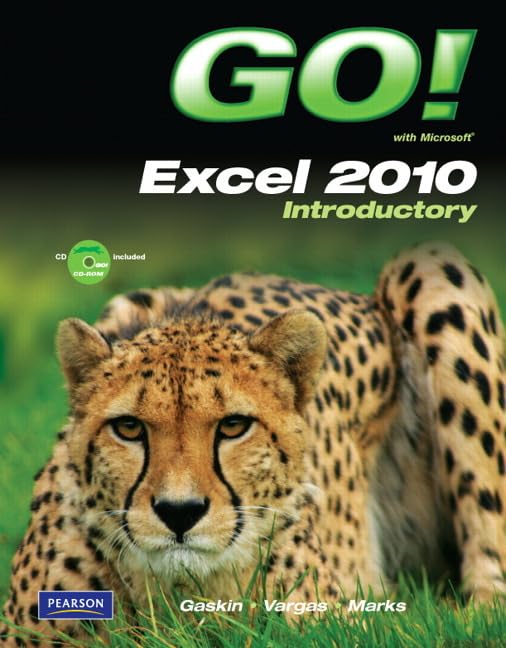

GO! with Microsoft Excel 2010 introductory / Shelley Gaskin, Alicia Vargas and Suzanne Marks.
Idioma: Español Detalles de publicación: New York Prentice Hall c2011.Descripción: 1 V. (various pagings) : ill. ; 28 cm. + 1 CD-ROM (3/4 in)Tipo de contenido:- 9780135098141
- HF 5548.4 .M523 G376 2011
| Imagen de cubierta | Tipo de ítem | Biblioteca actual | Biblioteca de origen | Colección | Ubicación en estantería | Signatura topográfica | Materiales especificados | Info Vol | URL | Copia número | Estado | Notas | Fecha de vencimiento | Código de barras | Reserva de ítems | Prioridad de la cola de reserva de ejemplar | Reservas para cursos | |
|---|---|---|---|---|---|---|---|---|---|---|---|---|---|---|---|---|---|---|
| Libro | Biblioteca de Mayagüez Colección General mb | HF5548.4 .M523 G376 2011 (Navegar estantería(Abre debajo)) | c. 1 | Disponible | 50000003200820 |
Descripciones mejoradas de Syndetics:
For introductory computer courses on Microsoft Excel 2010 or courses in computer concepts with a lab component on Excel.
Teach the course YOU want in LESS TIME! The primary goal of the GO! Series, aside from teaching computer applications, is ease of implementation. This approach is based on clearly defined projects for students and a one-of-a-kind supplements package for instructors.CD-ROM disponible en el libro.
Includes index.
Tabla de contenidos provista por Syndetics
- GO! with Excel 2010 Intro
- Table of Contents
- Common Features Chapter 1 Using the Common Features of Office 2010
- Scenario: Oceana Palm Grill
- Project 1A Menu Plan
- Objective 1 Use Windows Explorer to Locate Files and Folder
- Activity 1.01 Using Windows Explorer to Locate Files and Folders
- Objective 2 Locate and Start a Microsoft Office 2010 Program
- Activity 1.02 Locating and Starting a Microsoft Office 2010 Program
- Objective 3 Enter and Edit Text in an Office Program
- Activity 1.03 Entering and Editing Text in an Office Program
- Objective 4 Perform Commands From a Dialog Box
- Activity 1.04 Performing Commands From a Dialog Box
- Objective 5 Create a Folder, Save a File, and Close a Program
- Activity 1.05 Creating a Folder, Saving a File, and Closing a Program
- Objective 6 Print a File
- Activity 1.06 Printing a File
- Project 1B Memo
- Objective 7 Open an Existing File and Save it With a New Name
- Activity 1.07 Opening an Existing File and Saving it With a New Name
- Objective 8 Explore Application Options
- Activity 1.08 Viewing Application Options
- Objective 9 Perform Commands from the Ribbon
- Activity 1.09 Performing Commands from the Ribbon
- Activity 1.10 Minimizing and Using the Keyboard to Control the Ribbon
- Objective 10 Apply Formatting in Office Programs
- Activity 1.11 Formatting and Viewing Pages
- Activity 1.12 Formatting Text
- Activity 1.13 Using the Office Clipboard to Cut, Copy, and Paste
- Objective 11 Use the Microsoft Office 2010 Help System
- Activity 1.14 Using the Microsoft Office 2010 Help System in Excel
- Objective 12 Compress Files
- Activity 1.15 Compressing Files
- Chapter 1 Creating a Worksheet and Charting Data
- Scenario: Texas Spectrum Wireless
- Project 1A Quarterly Sales Report with Embedded Column Chart
- Objective 1 Create, Save, and Navigate an Excel Workbook
- Activity 1.01 Starting Excel and Naming and Saving a Workbook
- Activity 1.02 Navigating a Worksheet and a Workbook
- Objective 2 Enter Data in a Worksheet
- Activity 1.03 Entering Text and Using AutoComplete
- Activity 1.04 Filling a Series with Auto Fill and Using Excel Keyboard Shortcuts
- Activity 1.05 Aligning Text and Adjusting the Size of Columns
- Activity 1.06 Entering Numbers
- Objective 3 Construct and Copy Formulas and Use the Sum Function
- Activity 1.07 Constructing a Formula and Using the Sum Function
- Activity 1.08 Copying a Formula by Using the Fill Handle
- Objective 4 Format Cells with Merge & Center and Cell Styles
- Activity 1.09 Using Merge & Center and Applying Cell Styles
- Activity 1.10 Formatting Financial Numbers
- Objective 5 Chart Data in a Column Chart
- Activity 1.11 Charting Data in a Column Chart
- Objective 6 Prepare a Worksheet for Printing and Close Excel
- Activity 1.12 Changing Views, Creating a Footer, and Using Print Preview
- Activity 1.13 Deleting Unused Sheets in a Workbook
- Activity 1.14 Printing a Worksheet
- Activity 1.15 Displaying, Printing, and Hiding Formulas
- Project 1B Inventory Valuation
- Objective 7 Check Spelling in a Worksheet
- Activity 1.16 Checking Spelling in a Worksheet
- Objective 8 Enter Data by Range
- Activity 1.17 Entering Data by Range
- Objective 9 Construct Formulas for Mathematical Operations
- Activity 1.18 Using Arithmetic Operators
- Activity 1.19 Copying Formulas Containing Absolute Cell References
- Objective 10 Edit Values in a Worksheet
- Activity 1.20 Editing Values in a Worksheet
- Activity 1.21 Formatting Cells with the Percent Style
- Objective 11 Format a Worksheet
- Activity 1.22 Inserting and Deleting Rows and Columns
- Activity 1.23 Adjusting Column Widths and Wrapping Text
- Chapter 2 Using Functions, Creating Tables, and Managing Large Workbooks
- Scenario: Laurales Herbs and Spices
- Project 2A Inventory Status Report
- Objective 1 Use SUM, AVERAGE, MEDIAN, MIN, and MAX Functions
- Activity 2.01 Using the SUM and AVERAGE Functions
- Activity 2.02 Using the MEDIAN Function
- Activity 2.03 Using the MIN and MAX Functions
- Objective 2 Move Data, Resolve Error Messages, and Rotate Text
- Activity 2.04 Moving Data and Resolving a # # # # Error Message
- Activity 2.05 Rotating Text
- Objective 3 Use COUNTIF and IF Functions and Apply Conditional Formatting
- Activity 2.06 Using the COUNTIF Function
- Activity 2.07 Using the IF Function
- Activity 2.08 Applying Conditional Formatting by Using Highlight Cells Rules and Data Bars
- Activity 2.09 Using Find and Replace
- Objective 4 Use Date & Time Functions and Freeze Panes
- Activity 2.10 Using the NOW Function to Display a System Date
- Activity 2.11 Freezing and Unvreezing Panes
- Objective 5 Create, Sort, and Filter an Excel Table
- Activity 2.12 Creating an Excel Table
- Activity 2.13 Sorting and Filtering an Excel Table
- Activity 2.14 Converting a Table to a Range of Data
- Objective 6 Format and Print a Large Worksheet
- Activity 2.15 Printing Titles and Scaling to Fit
- Project 2B Weekly Sales Summary
- Objective 7 Navigate a Workbook and Rename Worksheets
- Activity 2.16 Navigating Among Worksheets, Renaming Worksheets, and Changing the Tab Color Worksheets
- Objective 8 Enter Dates, Clear Contents, and Clear Formats
- Activity 2.17 Entering and Formatting Dates
- Activity 2.18 Clearing Cell Contents and Formats
- Objective 9 Copy and Paste Cell Contents
- Activity 2.19 Copying and Pasting Cell Contents
- Objective 10 Edit and Format Multiple Worksheets at the Same Time
- Activity 2.20 Grouping Worksheets for Editing
- Activity 2.21 Formatting and Constructing Formulas on Grouped Worksheets
- Objective 11 Create a Summary Sheet
- Activity 2.22 Constructing Formulas that Refer to Cells in Another Worksheet
- Activity 2.23 Changing Values in a Detail Worksheet to Update a Summary Worksheet
- Objective 12 Format and Print Multiple Worksheets in a Workbook
- Activity 2.24 Moving and Formatting Worksheets in a Workbook
- Activity 2.25 Printing All the Worksheets in a Workbook
- Chapter 3 Charting Data
- Scenario: City of Orange Blossom Beach
- Project 3A Pie Chart
- Objective 1 Create a Pie Chart and a Chart Sheet
- Activity 3.01 Calculating Percentages
- Activity 3.02 Using Formula AutoComplete
- Activity 3.03 Creating a Pie Chart with a Chart Sheet
- Objective 2 Format a Pie Chart
- Activity 3.04 Applying 3-D to a Pie Chart
- Activity 3.05 Rotating Slices in a Pie Chart
- Activity 3.06 Exploding and Coloring a Pie Chart
- Activity 3.07 Formatting the Chart Area of a Pie Chart
- Activity 3.08 Inserting a Text Box in a Chart
- Objective 3 Update a Chart and Insert WordArt
- Activity 3.09 Updating a Chart
- Activity 3.10 Inserting WordArt in a Worksheet
- Objective 4 Preparing a Chart Sheet for Printing
- Activity 3.11 Preparing and Printing a Chart Sheet
- Project 3B Line Chart
- Objective 5 Design a Worksheet for What-If Analysis
- Activity 3.12 Using Parentheses in a Formula
- Activity 3.13 Calculating a Value After an Increase
- Objective 6 Perform What-If Analysis
- Activity 3.14 Performing What-If Analysis
- Activity 3.15 Using Paste Special
- Objective 7 Compare Data with a Line Chart
- Activity 3.16 Creating a Line Chart to Compare Data
- Chapter 4 Use Financial and Lookup Functions, Define Names, and Validate Data
- Scenario: Rubanne Specialties
- Project 4A Amortization Schedule
- Objective 1 Use Financial Functions
- Activity 4.01 Inserting the PMT Financial Function
- Objective 2 Use Goal Seek
- Activity 4.02 Using Goal Seek to Produce a Desired Result
- Activity 4.03 Using Goal Seek to Find an Increased Period
- Objective 3 Create a Data Table
- Activity 4.04 Designing a Two-Variable Data Table
- Activity 4.05 Using a Data Table to Calculate Options
- Project 4B Quarterly Cost Report and Lookup Form
- Objective 4 Define Names
- Activity 4.06 Defining a Name
- Activity 4.07 Inserting New Data in a Named Range
- Activity 4.08 Changing a Defined Name
- Activity 4.09 Creating a Defined Name by Using Row and Column Titles
- Objective 5 Use Defined Names in a Formula
- Activity 4.10 Using Defined Names in a Formula
- Objective 6 Use Lookup Functions
- Activity 4.11 Defining a Range of Cells for Lookup Function
- Activity 4.12 Inserting the VLOOKUP Function
- Objective 7 Validate Data
- Activity 4.13 Creating a Validation List
- Chapter 5 Managing Large Workbooks and Using Advanced Sorting and Filtering
- Scenario: Capital Cities Community College
- Project 5A Large Worksheet
- Objective 1 Navigate and Manage Large Worksheets
- Activity 5.01 Using the Go to Special Command
- Activity 5.02 Hiding Columns
- Activity 5.03 Using the Go to Command
- Activity 5.04 Arranging Multiple Workbooks and Splitting Worksheets
- Objective 2 Enhance Worksheets with Themes and Styles
- Activity 5.05 Changing and Customizing a Workbook Theme
- Activity 5.06 Creating and Applying a Custom Table Style
- Objective 3 Format a Worksheet to Share with Others
- Activity 5.07 Previewing and Modifying Page Breaks
- Activity 5.08 Repeating Column or Row Titles
- Activity 5.09 Inserting a Hyperlink in a Worksheet
- Activity 5.10 Modifying a Hyperlink
- Objective 4 Save Excel Data in Other File Formats
- Activity 5.11 Viewing and Saving a Workbook as a Web Page
- Activity 5.12 Saving Excel Data in CSV File Format
- Activity 5.13 Saving an Excel Data as a PDF or XPS File
- Project 5B Sort, Filter, and Outline a Database
- Objective 5 Use Advanced Sort Techniques
- Activity 5.14 Sorting on Multiple Columns
- Activity 5.15 Sorting By Using a Custom List
- Objective 6 Use Custom and Advanced Filters
- Activity 5.16 Filtering by Format and Values Using AutoFilter
- Activity 5.17 Filtering by Custom Criteria Using AutoFilter
- Activity 5.18 Inserting the Sheet Name and Page Numbers in a Footer
- Activity 5.19 Filtering by Using Advanced Criteria
- Activity 5.20 Extracting Filtered Rows
- Objective 7 Subtotal, Outline, and Group a List of Data
- Activity 5.21 Subtotaling, Outlining, and Grouping a List of Data
- Chapter 6 Creating Charts, Diagrams, and Templates
- Scenario: New York-New Jersey Job Fair
- Project 6A Organization Charts and Diagrams
- Objective 1 Create and Format Sparklines and a 3-D Column Chart
- Activity 6.01 Creating and Formatting Sparklines
- Activity 6.02 Creating a 3-D Column Chart
- Activity 6.03 Changing the Display of Chart Data
- Activity 6.04 Editing and Formatting the Chart Title
- Activity 6.05 Adding, Formatting, and Aligning Titles
- Activity 6.06 Editing Source Data
- Activity 6.07 Formatting the Chart Floor and Chart Walls
- Objective 2 Create and Format a Line Chart
- Activity 6.08 Creating a Line Chart
- Activity 6.09 Deleting a Legend and Changing a Chart Title
- Activity 6.10 Changing the Values on the Value Axis
- Activity 6.11 Formatting the Plot Area and the Data Series
- Activity 6.12 Inserting a Trendline
- Objective 3 Create and Modify a SmartArt Graphic
- Activity 6.13 Creating a Process SmartArt Graphic
- Activity 6.14 Modifying and Changing the Diagram Style
- Objective 4 Create and Modify an Organization Chart
- Activity 6.15 Creating and Modifying a SmartArt Organization Chart
- Activity 6.16 Adding Effects to a SmartArt Graphic
- Activity 6.17 Preparing Worksheets With Charts and Diagrams for Printing
- Project 6B Expense Report and Order Form
- Objective 5 Create an Excel Template
- Activity 6.18 Entering Template Text
- Activity 6.19 Formatting a Template
- Activity 6.20 Entering Template Formulas
- Activity 6.21 Inserting and Modifying an Image
- Activity 6.22 Inserting and Modifying a WordArt Image
- Activity 6.23 Saving a File as a Template
- Objective 6 Protect a Worksheet
- Activity 6.24 Protecting a Worksheet
- Objective 7 Create a Worksheet Based on a Template
- Activity 6.25 Creating a Worksheet Based on a Template
Notas de autor provistas por Syndetics
Shelley Gaskin , Series Editor for the GO! Series, is a professor of business and computer technology at Pasadena City College in Pasadena, California. She holds a master's degree in business education from Northern Illinois University and a doctorate in adult and community education from Ball State University. Dr. Gaskin has 15 years of experience in the computer industry with several Fortune 500 companies and has developed and written training materials for custom systems applications in both the public and private sector. She is also the author of books on Microsoft Outlook and word processing.
Alicia Vargas is a faculty member in Business Information Technology at Pasadena City College. She holds a master's and a bachelor's degree in business education from California State University, Los Angeles, and has authored several textbooks and training manuals on Microsoft Word, Microsoft Excel, and Microsoft PowerPoint.
Suzanne Marks is a faculty member in Business Technology Systems at Bellevue Community College, Bellevue, Washington. She holds a bachelor's degree in business education from Washington State University, and was project manager for the first IT Skills Standards in the United States.