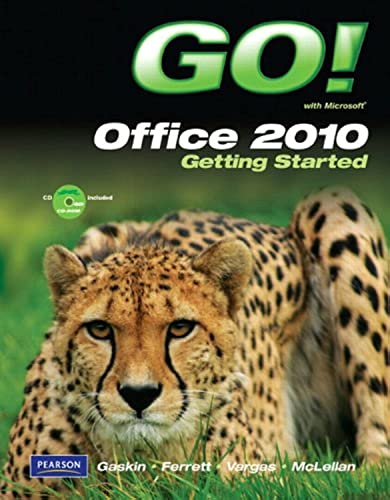

Go! with Microsoft Office 2010, getting started Shelley Gaskin ... [et al.].
Detalles de publicación: Upper Saddle River, N.J. Pearson Prentice Hall c2011.Descripción: xxi, 293, [20] p. ill. (chiefly col.) 28 cm. 1 CD-ROM (4 3/4 in.)ISBN:- 9780135088654
- 0135088658
- 005.5 G573 22
- HF5548.4.M525 G6256 2011
| Imagen de cubierta | Tipo de ítem | Biblioteca actual | Biblioteca de origen | Colección | Ubicación en estantería | Signatura topográfica | Materiales especificados | Info Vol | URL | Copia número | Estado | Notas | Fecha de vencimiento | Código de barras | Reserva de ítems | Prioridad de la cola de reserva de ejemplar | Reservas para cursos | |
|---|---|---|---|---|---|---|---|---|---|---|---|---|---|---|---|---|---|---|
| Libro | Biblioteca Encarnación Valdés Colección General bev | 005.5 G573 (Navegar estantería(Abre debajo)) | Disponible | 80000002460239 | ||||||||||||||
| Disco | Biblioteca Encarnación Valdés Colección General bev | 005.5 G573 (Navegar estantería(Abre debajo)) | Disponible | CD | 80000002460221 |
Descripciones mejoradas de Syndetics:
For introductory computer courses on Microsoft Office 2010 or courses in computer concepts with a lab component for Microsoft Office 2010 Applications.
Teach the course YOU want in LESS TIME! The primary goal of the GO! Series, aside from teaching computer applications, is ease of implementation. This approach is based on clearly defined projects for students and a one-of-a-kind supplements package for instructors.Includes index.
GO! walkthrough -- Using the common features of Microsoft Office 2010 -- Creating documents with Microsoft Word 2010 -- Creating a worksheet and charting data -- Getting started with Access databases -- Getting started with Microsoft Office PowerPoint.
Tabla de contenidos provista por Syndetics
- GO! with Microsoft Office 2010 Getting Started
- Table of Contents
- Common Features
- Chapter 1 Using the Common Features of Office 2010
- Scenario: Oceana Palm Grill
- Project 1A Menu Plan
- Objective 1 Use Windows Explorer to Locate Files and Folder
- Activity 1.01 Using Windows Explorer to Locate Files and Folders
- Objective 2 Locate and Start a Microsoft Office 2010 Program
- Activity 1.02 Locating and Starting a Microsoft Office 2010 Program
- Objective 3 Enter and Edit Text in an Office Program
- Activity 1.03 Entering and Editing Text in an Office Program
- Objective 4 Perform Commands From a Dialog Box
- Activity 1.04 Performing Commands From a Dialog Box
- Objective 5 Create a Folder, Save a File, and Close a Program
- Activity 1.05 Creating a Folder, Saving a File, and Closing a Program
- Objective 6 Print a File
- Activity 1.06 Printing a File
- Project 1B Memo
- Objective 7 Open an Existing File and Save it With a New Name
- Activity 1.07 Opening an Existing File and Saving it With a New Name
- Objective 8 Explore Application Options
- Activity 1.08 Viewing Application Options
- Objective 9 Perform Commands from the Ribbon
- Activity 1.09 Performing Commands from the Ribbon
- Activity 1.10 Minimizing and Using the Keyboard to Control the Ribbon
- Objective 10 Apply Formatting in Office Programs
- Activity 1.11 Formatting and Viewing Pages
- Activity 1.12 Formatting Text
- Activity 1.13 Using the Office Clipboard to Cut, Copy, and Paste
- Objective 11 Use the Microsoft Office 2010 Help System
- Activity 1.14 Using the Microsoft Office 2010 Help System in Excel
- Objective 12 Compress Files
- Activity 1.15 Compressing Files
- Word Chapter 1 Using Graphics and Lists
- Scenario: Laurel College
- Project 1A Flyer
- Objective 1 Create a New Document and Insert Text
- Activity 1.1 Starting a New Word Document and Inserting Text
- Objective 2 Insert and Format Graphics
- Activity 1.2 Formatting Text Using Text Effects
- Activity 1.3 Inserting and Resizing Pictures
- Activity 1.4 Wrapping Text Around a Picture
- Activity 1.5 Moving a Picture
- Activity 1.6 Applying Picture Styles and Artistic Effects
- Activity 1.7 Adding a Page Border
- Objective 3 Insert and Modify Text Boxes and Shapes
- Activity 1.8 Inserting a Shape
- Activity 1.9 Inserting a Text Box
- Activity 1.10 Moving, Resizing, and Formatting Shapes and Text Boxes
- Objective 4 Preview and Print a Document
- Activity 1.11 Adding a File Name to the Footer
- Activity 1.12 Previewing and Printing a Document
- Project 1B Information Handout
- Objective 5 Change Document and Paragraph Layout
- Activity 1.13 Setting Margins
- Activity 1.14 Aligning Text
- Activity 1.15 Changing Line Spacing
- Activity 1.16 Indenting Text and Adding Space After Paragraphs
- Objective 6 Create and Modify Lists
- Activity 1.17 Creating a Bulleted List
- Activity 1.18 Creating a Numbered List
- Activity 1.19 Customizing Bullets
- Objective 7 Set and Modify Tab Stops
- Activity 1.20 Setting Tab Stops
- Activity 1.21 Modifying Tab Stops
- Objective 8 Insert a SmartArt Graphic
- Activity 1.22 Inserting a SmartArt Graphic
- Activity 1.23 Modifying a SmartArt Graphic
- Excel Chapter 1 Creating a Worksheet and Charting Data
- Scenario: Texas Spectrum Wireless
- Project 1A Quarterly Sales Report with Embedded Column Chart
- Objective 1 Create, Save, and Navigate an Excel Workbook
- Activity 1.01 Starting Excel and Naming and Saving a Workbook
- Activity 1.02 Navigating a Worksheet and a Workbook
- Objective 2 Enter Data in a Worksheet
- Activity 1.03 Entering Text and Using AutoComplete
- Activity 1.04 Filling a Series with Auto Fill and Using Excel Keyboard Shortcuts
- Activity 1.05 Aligning Text and Adjusting the Size of Columns
- Activity 1.06 Entering Numbers
- Objective 3 Construct and Copy Formulas and Use the Sum Function
- Activity 1.07 Constructing a Formula and Using the Sum Function
- Activity 1.08 Copying a Formula by Using the Fill Handle
- Objective 4 Format Cells with Merge & Center and Cell Styles
- Activity 1.09 Using Merge & Center and Applying Cell Styles
- Activity 1.10 Formatting Financial Numbers
- Objective 5 Chart Data in a Column Chart
- Activity 1.11 Charting Data in a Column Chart
- Objective 6 Prepare a Worksheet for Printing and Close Excel
- Activity 1.12 Changing Views, Creating a Footer, and Using Print Preview
- Activity 1.13 Deleting Unused Sheets in a Workbook
- Activity 1.14 Printing a Worksheet
- Activity 1.15 Displaying, Printing, and Hiding Formulas
- Project 1B Inventory Valuation
- Objective 7 Check Spelling in a Worksheet
- Activity 1.16 Checking Spelling in a Worksheet
- Objective 8 Enter Data by Range
- Activity 1.17 Entering Data by Range
- Objective 9 Construct Formulas for Mathematical Operations
- Activity 1.18 Using Arithmetic Operators
- Activity 1.19 Copying Formulas Containing Absolute Cell References
- Objective 10 Edit Values in a Worksheet
- Activity 1.20 Editing Values in a Worksheet
- Activity 1.21 Formatting Cells with the Percent Style
- Objective 11 Format a Worksheet
- Activity 1.22 Inserting and Deleting Rows and Columns
- Activity 1.23 Adjusting Column Widths and Wrapping Text
- Access Chapter 1 Getting Started with Access Databases
- Scenario: Capital Cities Community College
- Project 1A Contact Information
- Objective 1 Identify Good Database Design
- Activity 1.01 Using Good Design Techniques to Plan a Database
- Objective 2 Create a Table and Define Fields in a New Blank Database
- Activity 1.02 Starting with a New Blank Database
- Activity 1.03 Creating Fields in a Table
- Activity 1.04 Renaming Field in a Table
- Activity 1.05 Adding a Record to a Table
- Activity 1.06 Assigning the Data Type of a Field in Datasheet View
- Activity 1.07 Adding Additional Records to a Table
- Activity 1.08 Importing Data from an Excel Workbook to an Existing Access Table
- Objective 3 Add and Change the Structure of Tables
- Activity 1.09 Deleting a Table Field in Design View
- Activity 1.10 Modifying a Field Size and Description in Design View
- Activity 1.11 Setting a Primary Key and Saving a Table
- Activity 1.12 Adding a Second Table to a Database by Importing an Excel Spreadsheet
- Activity 1.13 Adjusting Column Widths
- Activity 1.14 Printing a Table
- Objective 4 Create and Use a Query, a Form, and a Report
- Activity 1.15 Using the Simple Query Wizard to Create a Query
- Activity 1.16 Creating a Form
- Activity 1.17 Creating, Modifying, and Printing a Report
- Objective 5 Save, Close, and Change the Properties of a Database
- Activity 1.18 Changing Database Properties
- Activity 1.19 Closing and Saving a Database
- Project 1B Student Workshops
- Objective 6 Create a Database Using a Template
- Activity 1.20 Creating a New Database Using a Template
- Activity 1.21 Building a Table by Entering Records in a Multiple Items Form
- Objective 7 Organize Database Objects in the Navigation Pane
- Activity 1.22 Organizing Database Objects in the Navigation Pane
- Objective 8 Create a New Table in a Database Created with a Template
- Activity 1.23 Creating a New Table and Changing Its Design
- Objective 9 View a Report and Print a Table in a Database Created with a Template
- Activity 1.24 Viewing a Report
- Activity 1.25 Printing a Table
- PowerPoint Chapter 1 Getting Started with Microsoft Office PowerPoint
- Scenario: Lehua Hawaiian Tours
- Project 1A Company Overview
- Objective 1 Create a New Presentation
- Activity 1.1 Identifying Parts of the PowerPoint Window
- Activity 1.2 Entering Presentation Text and Saving a Presentation
- Activity 1.3 Applying a Presentation Theme
- Objective 2 Edit a Presentation in Normal View
- Activity 1.4 Inserting a New Slide
- Activity 1.5 Increasing and Decreasing List Levels
- Activity 1.6 Adding Speakers Notes to a Presentation
- Activity 1.7 Displaying and Editing Slides in the Slide Pane
- Objective 3 Insert and Format Pictures to a Presentation
- Activity 1.8 Inserting a Picture from a File
- Activity 1.9 Applying a Style to a Picture
- Activity 1.10 Applying Artistic Effects to a Picture
- Objective 4 Print and View a Presentation
- Activitiy 1.11 Viewing a Slide Show
- Activity 1.12 Inserting Headers and Footers
- Activity 1.13 Printing a Presentation
- Project 1B New Product Announcement
- Objective 5 Edit an Existing Presentation
- Activity 1.14 Displaying and Editing the Presentation Outline
- Activity 1.15 Inserting Slides from an Existing Presentation
- Activity 1.16 Finding and Replacing Text
- Objective 6 Format a Presentation
- Activity 1.17 Changing Fonts, Font Sizes, Font Styles, and Font Colors
- Activity 1.18 Aligning Text and Changing Line Spacing
- Activity 1.19 Modifying Slide Layout
- Objective 7 Use Slide Sorter View
- Activity 1.20 Deleting Slides in Slide Sorter View
- Activity 1.21 Moving Slides in Slide Sorter View
- Objective 8 Apply Slide Transitions
- Activity 1.22 Applying Slide Transitions to a Presentation
- Objective 9 Use Reading View
- Activity 1.23 Viewing and Editing a Presentation in Reading View
Notas de autor provistas por Syndetics
Shelley Gaskin , Series Editor for the GO! Series, is a professor of business and computer technology at Pasadena City College in Pasadena, California. She holds a master's degree in business education from Northern Illinois University and a doctorate in adult and community education from Ball State University. Dr. Gaskin has 15 years of experience in the computer industry with several Fortune 500 companies and has developed and written training materials for custom systems applications in both the public and private sector. She is also the author of books on Microsoft Outlook and word processing.
Robert L. Ferret recently retired as the director of the Center for Instructional Computing at Eastern Michigan University, where he provided computer training and support to faculty. He has authored or co-authored more than 70 books on Access, PowerPoint, Excel, Publisher, WordPerfect, and Word. Before writing the GO! Series, Bob was a series editor and author for the Learn Series . He has a bachelor's degree in psychology, a master's degree in geography, and a master's degree in interdisciplinary technology from Eastern Michigan University. Bob's doctoral studies were in instructional technology at Wayne State University. For fun, Bob teaches a four-week computers and genealogy class and has written genealogy and local history books.
Alicia Vargas is a faculty member in Business Information Technology at Pasadena City College. She holds a master's and a bachelor's degree in business education from California State University, Los Angeles, and has authored several textbooks and training manuals on Microsoft Word, Microsoft Excel, and Microsoft PowerPoint.
Carolyn McLellan is the Dean of the Division of Information Technology and Business at Tidewater Community College in Virginia Beach, Virginia. She has an M.A. degree in Secondary Education from Regent University and a B.S. degree in Business Education from Old Dominion University. She taught for Norfolk Public Schools for 17 years in Business Education and served as a faculty member at Tidewater Community College for eight years teaching networking, where she developed over 23 new courses and earned the Microsoft Certified Trainer and Microsoft Certified System Engineer industry certifications. In addition to teaching, Carolyn loves to play volleyball, boogie board at the beach, bicycle, crochet, cook, and read.