Imagen de Amazon.com

Portada de Syndetics
Imagen de OpenLibrary
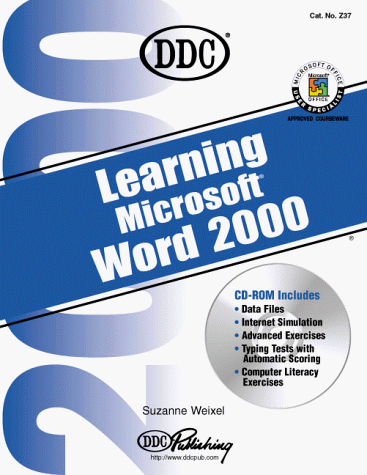
Learning microsoft word 2000 Suzanne Weixel.
Detalles de publicación: New York DDC Publishing C2000.Descripción: ivx, 492 p. ill. 28 cm. 1 CD-ROM (4 3/4 in.)ISBN:- 1562437038
- 652.553 W434l 2000
- Z52.5 .M52 W438 2000
| Imagen de cubierta | Tipo de ítem | Biblioteca actual | Biblioteca de origen | Colección | Ubicación en estantería | Signatura topográfica | Materiales especificados | Info Vol | URL | Copia número | Estado | Notas | Fecha de vencimiento | Código de barras | Reserva de ítems | Prioridad de la cola de reserva de ejemplar | Reservas para cursos | |
|---|---|---|---|---|---|---|---|---|---|---|---|---|---|---|---|---|---|---|
| Disco | Biblioteca Encarnación Valdés Colección General bev | 652.55369 W436L 2000 (Navegar estantería(Abre debajo)) | Disponible | 80000002208463 | ||||||||||||||
| Disco | Biblioteca Encarnación Valdés Colección General bev | 652.55369 W436L 2000 (Navegar estantería(Abre debajo)) | c.2 | Disponible | CD- ROM | 80000002208489 | ||||||||||||
| Libro | Biblioteca Encarnación Valdés Colección General bev | 652.55369 W436L2000 (Navegar estantería(Abre debajo)) | c.2 | Disponible | 800000002208471 | |||||||||||||
| Libro | Biblioteca Encarnación Valdés Colección General bev | 652.55369 W436L (Navegar estantería(Abre debajo)) | 2000 | Disponible | 80000002208455 |
Total de reservas: 0
Descripciones mejoradas de Syndetics:
Master 2000's new themed page formats; explore its much-improved table editor allowing nesting tables, floating tables (where text wraps around a table) and side-by-side tables. Discover comment anchoring -- put comments right onto a document. Find out about expanded networking capabilities -- e.g., have an auto e-mail sent to you when someone makes changes to a document saved on a network.
ESTE LIBRO INCLUYE UN DISCO
Tabla de contenidos provista por Syndetics
- Introduction(p. vi)
- Directory of files(p. xii)
- Lesson 1 Word 2000 Basics(p. 1)
- About Microsoft Word 2000
- Conventions Used in This Book
- Use the Mouse
- Use the Keyboard
- Start Word
- The Word Window
- Exit Word
- Commands
- Menus
- Toolbars
- Dialog Box Options
- Context Menus
- Window Controls
- Zoom
- Scroll
- Office Assistant
- Help Program
- What's This?
- Microsoft Office on the Web
- Critical Thinking
- Lesson 2 Create, Save, and Print Documents(p. 29)
- Create a New Document
- Type in a Document
- Use Click and Type
- Correct Errors
- Save a New Document
- Close a Document
- Preview a Document
- Insertion Point Movements
- Change the View
- Full Screen View
- Show/Hide Marks
- Rulers
- AutoCorrect
- Select Text
- Auto Text
- Save Changes
- Correct Spelling as You Type
- Correct Grammar as You Type
- Check Spelling
- Check Grammar
- Use the Thesaurus
- Create a Business Letter
- Parts of a Business Letter
- Parts of a Personal Business Letters
- The Date and Time Feature
- Shrink to Fit
- Envelopes
- Labels
- Internet Basics
- Access the Internet from Word
- The Favorites Folder
- Search the Internet
- Print Web Page Information
- Critical Thinking
- Lesson 3 Open and Edit Documents(p. 73)
- Open a Recently Saved Document
- Open a Document Not Recently Saved
- Save As
- Insert Text
- Overtype Mode
- Uppercase Mode
- Change Case
- Proofreaders' Marks
- Delete Text
- Use Undo
- Use Redo
- Move Text
- Use Cut and Paste
- Use Drag-and-Drop Editing
- Move a Paragraph
- Use Copy and Paste
- Use the Drag-and-Drop Feature to Copy
- Copy Text from a Web Page into a Word Document
- Send E-mail from Word
- Attach a Word Document to an E-mail Message
- Send a Word Document as E-mail
- Receive E-mail Messages in Outlook or Outlook Express
- Print an E-mail Message
- Save an E-mail Attachment
- Critical Thinking
- Lesson 4 Text Formatting(p. 105)
- Set Tabs
- Horizontal Alignment
- Select Fonts
- Change Font Size
- Apply Font Styles
- Font Effects
- Text Effects
- Underlines
- Font Color
- Highlight Text
- Format Painter
- Use Symbols
- Bulleted Lists
- Numbered Lists
- Sort
- Critical Thinking
- Lesson 5 Document Formatting(p. 141)
- Vertical Alignment
- Line Spacing
- Paragraph Spacing
- Indent Text
- Format a One-Page Report
- Set Margins
- Set Page Orientation
- Create Hyperlinks
- Edit Hyperlinks
- Critical Thinking
- Lesson 6 Manage Documents(p. 163)
- Open a Document as Read-only
- Open a Document from Windows
- Preview a File Before Opening It
- Print a File without Opening It
- Print Multiple Files
- Document Properties
- File Types
- Find Files
- Save as Web Page
- Web Layout View
- Web Page Preview
- Open an HTML Document
- Save a Web Page Locally
- Web Page Titles
- Web Page Graphics
- Backgrounds
- Themes
- Critical Thinking
- Lesson 7 Tables(p. 194)
- Create a Table
- Move the Insertion Point in a Table
- Enter Data in a Table
- Format a Table
- Select in a Table
- Insert Columns, Rows, or Cells
- Delete Columns, Rows, or Cells
- Set Alignments within Table Cells
- Align Table on the Page
- Column Width and Row Height
- Tables and Borders Toolbar
- Draw a Table
- Merge and Split Cells
- Move and Resize Tables
- Rotate Text
- Wrap Text
- Calculate in a Table
- Number Formats
- Sort Rows
- Cell Borders and Shading
- Use Tables in HTML Documents
- Use Web Page Templates
- Critical Thinking
- Lesson 8 Merge(p. 237)
- Mail Merge
- Create a Main Document
- Create a Data Source
- Document
- Use an Existing Data Source
- Modify an Existing Data Source
- Sort a Data Source
- Merge Selected Records
- Merge Envelopes or Labels
- Critical Thinking
- Lesson 9 Multiple-Page Documents(p. 265)
- Create an Outline
- Edit an Outline
- Collapse and Expand Outlines
- Number an Outline
- Insert Hard Page Breaks
- Insert Section Breaks
- Insert Page Numbers
- Control Text Flow
- Create Headers/Footers
- Different First Page Headers/Footers
- Different Odd/Even Headers/Footers
- Different Section Headers/Footers
- Footnotes and Endnotes
- Comments
- Use Document Map
- Copy or Move Text from One Page to Another
- Preview Multiple Pages
- Drag and Drop Text from One Page to Another
- Print Specific Pages
- Find and Replace
- Create Bookmarks
- Select Browse Object
- Track Changes
- Accept/Reject Changes
- Customize Revision Marks
- Open Multiple Documents
- Arrange Documents on Screen
- Copy/Move Text from One Document to Another
- Compare Documents
- Critical Thinking
- Lesson 10 Desktop Publishing and Automation(p. 331)
- Newspaper Columns
- Column Width
- Column Breaks
- Balance Columns
- Dropped Capitals
- Borders and Shading
- Templates
- Wizards
- Styles
- Create a Style
- Edit a Style
- Insert a File
- Record a Macro
- Run a Macro
- Critical Thinking
- Lesson 11 Graphics(p. 371)
- Graphics Objects
- Text Wrap
- Clip Art
- Text Boxes
- Select Objects
- Resize Objects
- Move Objects
- Download Graphics Objects from the Web
- Drawing Objects
- AutoShapes
- Adjust Objects
- Rotate and Flip Objects
- Line Color and Styles
- Fill Color
- Shadows and 3-D Effects
- Group and Ungroup Objects
- Layer Objects with Text
- Layer Objects with Other Objects
- Create WordArt
- WordArt Text
- WordArt Shapes and Formatting
- Watermarks
- Critical Thinking
- Lesson 12 Integration(p. 431)
- Microsoft Office 2000
- Run Multiple Programs at the Same Time
- Arrange Multiple Program Windows
- Switch Among Open Programs
- Copy/Move Data from One Application to Another
- Object Linking and Embedding (OLE)
- Link Files
- Edit a Linked Object
- Update Links
- Embed Objects
- Edit Embedded Objects
- Merge a Word Document with an Access Database
- Embed a PowerPoint Slide in a Word Document
- Export PowerPoint Slides and Notes to a Word Document
- Export PowerPoint Text to a Word Document
- Critical Thinking
- Lesson 13 Challenge Exercises(p. 463)
- Create a Document Using a Template
- Retrieve Data From an Internet Web Site
- Send Document Via E-Mail
- Link a Worksheet into a Word Document
- Locate Data on the Internet
- Edit Excel Worksheet
- Update Linked Object in a Word Document
- Save a Word Document as a Web Page
- Download Clip Art and Insert it on a Web Page
- Link Excel Data with a Web Page
- Update linked Data
- Create a Home Page Using a Table
- Link the Home Page to Presentation Web Sites
- Link the Home Page to an Internet Site
- Add a Web Page to Your Favorites Folder
- Print a Web Page off the Internet
- Locate Financial Data on the Internet
- Copy Data from the Internet Into an Excel Worksheet
- Copy Data from Excel into a Word Document
- Attach the Document to an E-Mail Message
- Record a Macro for a Mail Merge
- Use an Access Database as a Merge Data Source
- Run a Macro
- Create a Double-Sided Flyer
- Attach Two Documents to an E-Mail Message
- Run A Macro to Create Mailing Labels
- Lesson 14 Bonus Lesson(p. 371)
- Set Default File Location for Workgroup Templates
- Create Multiple Versions of a Document
- Protect a Document
- Insert a Cross-Reference
- Create an Index
- Modify an Index
- Create a Table of Contents
- Update a Table of Contents
- Customize Toolbars
- Create a Master Document
- Work with Subdocuments
- Create a Chart
- Modify a Chart
- Import Data into a Chart
- Create a Form
- Insert Form Fields
- Set Form Field Options
- Fill Out a Form
- Critical Thinking
- Index(p. 486)