Imagen de Amazon.com

Portada de Syndetics
Imagen de OpenLibrary
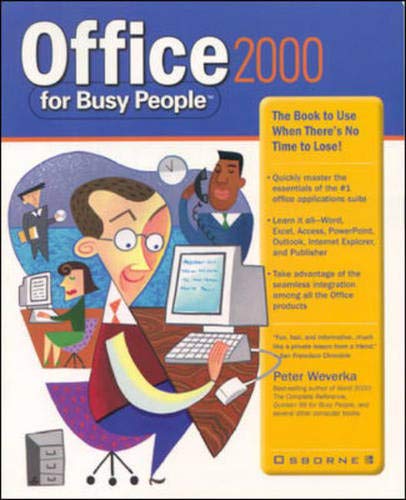
Office 2000 for busy people Peter Weverka.
Detalles de publicación: Berkeley, Calif. Osborne/McGraw-Hill c1999.Descripción: xxx, 305 p. col. ill. 23 cmISBN:- 0072118571 :
- 005.369 W544o
| Imagen de cubierta | Tipo de ítem | Biblioteca actual | Biblioteca de origen | Colección | Ubicación en estantería | Signatura topográfica | Materiales especificados | Info Vol | URL | Copia número | Estado | Notas | Fecha de vencimiento | Código de barras | Reserva de ítems | Prioridad de la cola de reserva de ejemplar | Reservas para cursos | |
|---|---|---|---|---|---|---|---|---|---|---|---|---|---|---|---|---|---|---|
| Libro | Biblioteca Encarnación Valdés Colección General bev | 005.369 W544o (Navegar estantería(Abre debajo)) | Disponible | 80000002115684 |
Total de reservas: 0
Includes index.
Tabla de contenidos provista por Syndetics
- Acknowledgments(p. xxv)
- Introduction(p. xxvii)
- 1 Stuff to Do Once to Make Your Life Easier(p. 1)
- Stay Organized: Create Folders for Your Files(p. 4)
- Learn How to Get Around in the Open and Save As Dialog Boxes(p. 5)
- Learn Techniques for Opening Files quickly(p. 7)
- Create the Office Shortcut Icons You Need(p. 8)
- Creating Shortcut Icons for the Windows Desktop(p. 9)
- Creating Shortcut Icons for Files and Folders(p. 11)
- Learn How to Handle the Toolbars(p. 13)
- Learn to Zoom In and Zoom Out(p. 14)
- Learn How to Handle Windows(p. 15)
- Minimizing, Maximizing, and Closing Windows(p. 16)
- Changing the Size and Location of a Window(p. 16)
- Splitting a Document Window to Work in Two Sections at Once(p. 17)
- Opening a Second Window on the File You're Working With(p. 18)
- Choose Your Default Font and Margin Settings(p. 18)
- 2 Tools You Can Use Throughout Office(p. 19)
- Opening a New File(p. 22)
- Creating a Generic File(p. 22)
- Creating a File from a Template(p. 23)
- Saving and Naming Files(p. 24)
- Entering and Formatting Text(p. 24)
- Boldfacing, Italicizing, and Underlining Text(p. 24)
- Changing Fonts, Font Sizes, and Text Color(p. 25)
- Aligning and Justifying Text(p. 26)
- Tools for Editing Faster(p. 27)
- The Undo Command for Fixing Errors(p. 27)
- The Repeat Command for Doing It Faster(p. 27)
- Correcting Typos with AutoCorrect(p. 28)
- Copying and Moving Data(p. 29)
- Copying and Moving Data with the Clipboard(p. 30)
- Copying and Moving Data Short Distances with Drag-and-Drop(p. 31)
- Laying Out the Page(p. 32)
- Setting the Margins(p. 32)
- Choosing a Paper Size and Orientation(p. 33)
- Spell-Checking Your Work(p. 34)
- Finding (and Replacing) Data(p. 36)
- Decorating Files with Clip Art and WordArt(p. 38)
- Inserting a Clip Art Image into a File(p. 38)
- Decorating a File with WordArt(p. 38)
- Handling "Objects" in Files(p. 41)
- Selecting Objects(p. 42)
- Changing the Location, Size, or Shape of an Object(p. 42)
- Adding a Background Color or Border to an Object(p. 43)
- Making Objects Overlap(p. 44)
- Printing Your Work(p. 45)
- 3 Up and Running with Word 2000(p. 47)
- Microsoft Word Family Secrets Revealed!(p. 51)
- Viewing Documents in Different Ways(p. 53)
- Selecting Text in a Word Document(p. 54)
- Laying Out the Text(p. 56)
- Indenting Text(p. 57)
- Deciding How Much Space to Put between Lines of Text(p. 59)
- Aligning Text with Respect to the Top and Bottom Margins(p. 59)
- Hyphenating Text(p. 60)
- Breaking Lines and Pages(p. 63)
- Dividing a Document into Sections(p. 64)
- Numbering the Pages in a Document(p. 66)
- Putting Headers and Footers on Pages(p. 67)
- Creating Numbered and Bulleted Lists(p. 70)
- Speed Techniques for Getting Around in Long Documents(p. 72)
- Bookmarking the Important Places in a Document(p. 72)
- Going Here and There with the Document Map(p. 73)
- Six Ways to Make Pages Look Better(p. 74)
- 4 Advanced Word 2000(p. 79)
- Styles for Consistent and Easy Formatting(p. 82)
- How Styles Work(p. 83)
- Applying a Style(p. 85)
- Creating a New Style(p. 85)
- Modifying a Style(p. 87)
- Constructing the Perfect Table(p. 89)
- Laying Out the Columns and Rows(p. 90)
- Entering the Data(p. 92)
- Changing the Table Layout(p. 92)
- Formatting a Table(p. 93)
- Ten Tricks for Handling Tables(p. 94)
- Putting Newspaper-Style Columns in a Document(p. 99)
- Finding the Right Word with the Thesaurus(p. 101)
- Tools for Reports and Scholarly Papers(p. 102)
- Outlines for Organizing Your Work(p. 103)
- Generating a Table of Contents(p. 104)
- Putting Footnotes and Endnotes in Documents(p. 106)
- 5 Up and Running with Excel 2000(p. 109)
- Introducing Worksheets and Workbooks(p. 112)
- Entering and Editing the Data(p. 114)
- Entering Data in a Worksheet(p. 114)
- Speed Techniques for Entering Data(p. 115)
- Moving Around in a Worksheet(p. 118)
- Selecting Cells in a Worksheet(p. 118)
- Deleting, Copying, and Moving Data(p. 119)
- Laying Out a Worksheet(p. 120)
- Formatting the Numbers(p. 120)
- Aligning Numbers and Text in Columns and Rows(p. 121)
- Inserting and Removing Rows and Columns(p. 123)
- Changing the Width of Columns and the Height of Rows(p. 124)
- Borders and Colors for Worksheets(p. 126)
- Handling the Worksheets in a Workbook(p. 127)
- 6 Advanced Excel 2000(p. 129)
- All About Formulas(p. 132)
- Entering a Formula(p. 135)
- Speed Techniques for Entering Formulas(p. 136)
- Clicking and Selecting to Enter Cell References(p. 136)
- Copying Formulas(p. 137)
- Working with Functions(p. 139)
- Building Charts from Your Data(p. 141)
- Creating a Chart with the Chart Wizard(p. 141)
- Editing a Chart(p. 143)
- 7 Outlook 2000: Managing Your E-Mail and Your Time(p. 145)
- A Trip Around the Outlook Screen(p. 148)
- Inbox: Composing, Sending, and Receiving E-Mail Messages(p. 150)
- Writing and Addressing an E-Mail Message(p. 150)
- Sending a File Along with a Message(p. 152)
- Sending the Same Message to Several People at Once(p. 152)
- Replying to and Forwarding E-Mail Messages(p. 154)
- Sending, Receiving, and Reading Your E-Mail(p. 155)
- Storing Files That Have Been Sent to You(p. 156)
- Storing and Managing Your E-Mail(p. 157)
- Contacts: Keeping Information about Others(p. 159)
- Adding a Contact to the Contacts List(p. 159)
- Searching for a Contact on the List(p. 160)
- Calendar: Scheduling Meetings and Appointments(p. 161)
- Getting Around in the Calendar(p. 161)
- Scheduling Appointments and Meetings(p. 162)
- Canceling, Rescheduling, and Altering Activities(p. 163)
- Tasks: Seeing What Needs to Get Done(p. 164)
- 8 PowerPoint 2000: Creating Professional Presentations(p. 167)
- Three Ways to Create a Presentation(p. 170)
- Creating a New Presentation(p. 172)
- Putting a New Slide in a Presentation(p. 173)
- Viewing and Working on Slides(p. 174)
- Changing the View(p. 174)
- Entering the Text(p. 176)
- Writing and Printing What You Will Say in the Presentation(p. 176)
- Moving and Deleting Slides(p. 177)
- Changing the Look of Slides(p. 178)
- Using the Master Slide for Consistent Text Formatting(p. 178)
- Choosing New Background Colors for Slides(p. 178)
- Printing Handout Copies of a Presentation(p. 181)
- Giving the Presentation(p. 181)
- Showing the Slides(p. 182)
- Giving a Self-Playing, Kiosk-Style Presentation(p. 183)
- Seven Tricks for Making a Presentation Livelier(p. 184)
- 9 Access 2000: Managing and Tracking Data(p. 189)
- What You Should Know Before You Begin(p. 193)
- Creating a New Database File(p. 196)
- Finding Your Way Around the Database Window(p. 196)
- Creating a Database Table(p. 198)
- Creating the Table(p. 198)
- Entering the Fields(p. 200)
- Designating the Primary Key(p. 200)
- Making Sure Data Entries Are Accurate(p. 202)
- Establishing the Relationships Between Database Tables(p. 203)
- Entering the Data in a Database Table(p. 205)
- Getting the Data Out: Sorting, Filtering, and Querying(p. 207)
- Sorting Data to Make It Easier to Work With(p. 207)
- Filtering a Database Table to Find Information(p. 208)
- Querying a Database for Information(p. 210)
- Presenting the Data in a Report(p. 214)
- 10 Sharing Data Among Files and Programs(p. 217)
- Generating Form Letters and Labels(p. 221)
- Preparing the Names and Addresses in a Word Table(p. 223)
- Generating Form Letters(p. 223)
- Generating Labels for Mass Mailings(p. 225)
- Merging the Main Document and the Data Source(p. 228)
- OLE for Sharing Data Between Programs(p. 229)
- Establishing the Link(p. 229)
- Managing OLE Links(p. 231)
- Creating an Excel Worksheet in a Word Document(p. 232)
- Using Word Document Headings as PowerPoint Text(p. 233)
- Including Hyperlinks in Files(p. 234)
- 11 Surfing the Internet with Internet Explorer 5(p. 237)
- Deciding How Many Times to Dial and When to Disconnect Automatically(p. 240)
- The Basics: Connecting and Disconnecting(p. 241)
- The Eight Ways to Start Internet Explorer(p. 242)
- If You Can't Connect to the Internet(p. 243)
- Disconnecting from the Internet(p. 244)
- Surfing the Internet(p. 244)
- Visiting a Web Site Whose Address You Know(p. 244)
- Clicking Hyperlinks to Go Here and There(p. 245)
- Searching for Information on the Web(p. 245)
- Finding Addresses and Phone Numbers on the Internet(p. 248)
- Revisiting Web Sites You've Been to Before(p. 249)
- Bookmarking Sites So You Can Visit Them Quickly(p. 250)
- Bookmarking Your Favorite Web Sites(p. 251)
- Going to a Site You've Bookmarked(p. 252)
- Renaming, Deleting, and Managing Bookmarks(p. 253)
- Seven Ways to Surf the Internet Faster(p. 254)
- Copying Pictures, Text, and Web Sites(p. 257)
- 12 Publisher 2000: Creating Professional Publications(p. 259)
- What You Should Know Before You Start Working(p. 262)
- Creating a New Publication(p. 264)
- Choosing a New Design or Color Scheme(p. 265)
- Finding Your Way Around a Publication(p. 266)
- Getting a Better View of Your Publication(p. 267)
- Going from Page to Page and Place to Place(p. 268)
- Frames for Laying Out the Pages(p. 269)
- Inserting a New Frame(p. 269)
- Adjusting the Size and Position of Frames(p. 271)
- Putting Borders and Color Backgrounds on Frames(p. 271)
- Layout and Ruler Guides to Help with Precision Layouts(p. 272)
- When Frames Overlap: Telling Publisher Which One to Put in the Foreground(p. 273)
- Entering and Laying Out the Text(p. 274)
- Entering the Text on the Page(p. 275)
- Making Text Jump from Frame to Frame(p. 275)
- Making Text Wrap Around a Picture or Other Kind of Frame(p. 276)
- Inserting and Removing Pages(p. 277)
- Decorating Your Publication(p. 278)
- Getting Objects from the Design Gallery(p. 278)
- Rotating and Flipping Objects(p. 279)
- A Installing Office 2000(p. 281)
- The New Installation Technique(p. 282)
- Before You Install Office 2000(p. 283)
- Installing Office 2000(p. 284)
- Custom Installation: Choosing Which Features to Install(p. 285)
- Reinstalling (or Removing) Office 2000(p. 287)
- Index(p. 289)